Full desktop control
Work across applications and system UI. Agents can read UI elements, operate controls, enter text, and capture the screen using the platform's native capabilities and your selected permissions.
Desktop app · real devices · your choice of agent
Install Machine Control on a Mac, Windows PC, or Linux computer—physical or virtual. Give agents access to apps, browser tabs, screenshots, keyboard, and mouse, with controls you can see and stop.
Create and coordinate Windows, macOS, and Linux VMs. Reach real iPhones, Chromebooks, Android devices, and more through native controls.
Why Machine Control
Use an OpenAI or Anthropic agent, another provider, or your own. Any agent that can run commands can use Machine Control's CLI. You choose the agent, the machine, and the access.
Work across applications and system UI. Agents can read UI elements, operate controls, enter text, and capture the screen using the platform's native capabilities and your selected permissions.
Control existing Chrome tabs, including signed-in sites, through the optional extension. Grant browser access separately from scripts and DevTools for deeper automation.
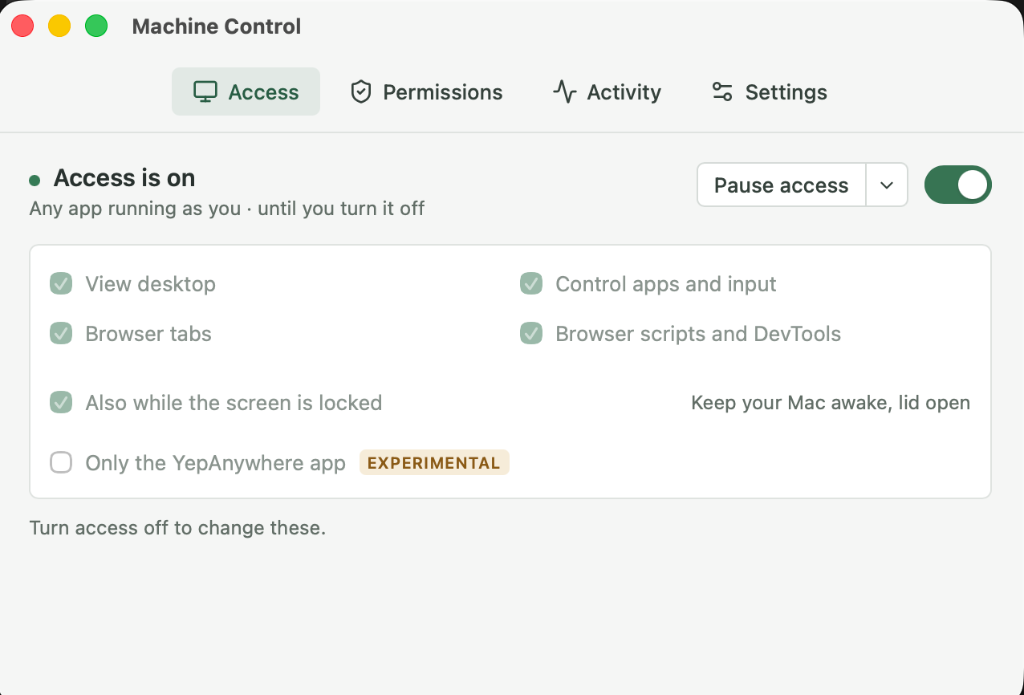
Browser setup and capabilities →Agents can request permission in a native prompt. Choose scopes and duration, and turn access off at any time. On Mac and Windows, pause access while you work and resume when you're ready.
Opt in to approved tasks on an awake computer while its screen is locked. Mac and Windows profiles use covered control and task-end relock, with additional helper setup and platform requirements.
Capabilities vary by platform. Locked-screen profiles are opt-in and experimental; Linux currently targets Ubuntu GNOME Wayland.See feature and testing coverage.
Install where the work happens
Install the desktop app on a physical computer or inside a VM. It runs in the menu bar or tray and includes the control CLI. Configured remote targets use the same native controls.
Apple silicon and Intel.
Menu bar app with native permissions.
Intel / AMD x64 and ARM64.
Tray app with visible access controls.
Ubuntu GNOME Wayland, x64 and ARM64.
Debian and AppImage packages.
VM control runs inside the guest, so ordinary tasks don't need to focus a hypervisor window on your desktop. Remote access requires a configured, authenticated route. Explore the VM tools
A toolbox for the whole VM lifecycle
Machine Control helps create, set up, validate, and coordinate Windows, macOS, and Linux VMs. Native utilities inside each guest let an agent operate it without opening or focusing a VM window on your desktop.
Use platform tools for OS installation or prepared images, guest administration, and resident control setup. Stage checks show what is ready and what still needs attention.
Administration, app control, screenshots, and input run inside the guest. An agent can reach those tools remotely while the VM runs without a visible hypervisor window on your computer.
Check guest administration, desktop state, and control readiness. Audit runtime health, verify reboot recovery, and certify candidates through the supported maintenance workflows.
Exclusive, expiring reservations coordinate agents using a shared VM. Reuse a development guest, discard an isolated workspace, or retain a candidate. Scoped tasks renew reservations and release them during cleanup.
Provisioning uses the CLI and platform setup tools. Supported hosting routes depend on the guest and controller OS; macOS guests require Apple hardware. Host-console input remains a bootstrap or recovery route.
Real devices, too
Let the same agent work with real phones, Chromebooks, headsets, and handhelds. Each uses its native controls and device-specific setup.
Install and launch apps, inspect and act on the real UI, take screenshots, and collect app logs, system logs, crash reports, and test files.
Uses an authorized Mac with pairing, Developer Mode, and a signed XCTest runner. Protected authentication stays on the device.
Set up iPhone control →Operate desktop controls and browser tabs, capture screenshots, send keyboard and pointer input, and deploy software—all through controls running on the Chromebook.
Uses a dedicated developer-mode Chromebook and configured remote access.
Set up Chromebook control →Start with the app
Keep access off until you're ready. Approve an agent's request or enable the scopes you want, for a timed session or until you turn it off.
Download for your computer or VM and open Machine Control.
Follow Permissions for desktop access and optional Chrome setup.
Point it to the installed CLI and approve the access it needs.
For developers and automation
Use the bundled CLI from your agent, terminal, or scripts. Headless deployments, remote targets, and isolated VM workspaces have focused guides.